11 July 2026 · Comparison
Framer to Webflow Migration: A No-BS Decision Guide
The short answer
When migrating from Framer to Webflow makes sense, what the process actually costs in time and money, and when staying on Framer is the smarter call.
Affiliate disclosure: This post contains affiliate links. If you click through and purchase, we may earn a commission at no extra cost to you.
The Verdict
Migrate from Framer to Webflow if you need clean code export, a headless CMS with API access, e-commerce, or deeper developer tooling. Stay on Framer if you value AI-first design workflows and faster visual iteration above all else.
Who picks Webflow: Teams that need structured content at scale (40-100 CMS collections, API-driven workflows), proper code ownership, or e-commerce. Agencies and developers who want the MACH-certified headless APIs and GSAP-powered animation engine.
Who picks Framer: Design-led marketing teams shipping landing pages weekly. Solo founders and small studios who want an AI agent working directly on the canvas, not a separate draft tool. Anyone with modest CMS needs (under 10 collections, under 2,500 items) who prioritizes iteration speed.
Current State: Framer vs Webflow in July 2026
Pricing
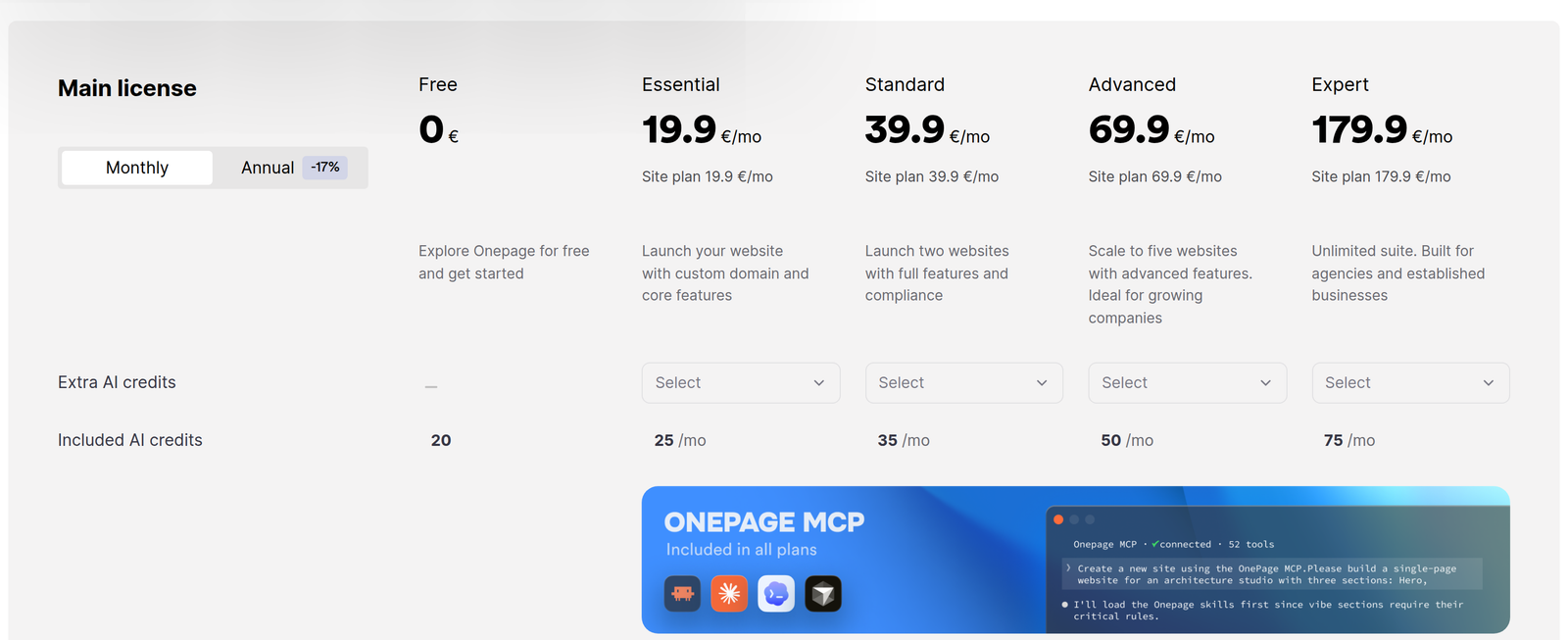
Framer keeps pricing simple: Free, Basic (€10/mo yearly), Pro (€30/mo yearly), and Enterprise (custom). Additional editors cost €20/mo each. Content editors are €10/mo. Key add-ons include localization (€20/locale), A/B testing (€50 per 500K events), and advanced hosting (€200/mo).
Webflow’s 2026 simplified pricing: Starter (free), Basic ($15/mo yearly), Premium ($25/mo yearly), Team ($2,500/mo, annual contract), and Enterprise (custom). Add-ons include Optimize ($299/mo for A/B testing), Analyze ($9/mo for analytics), and Localize ($9-29/mo).
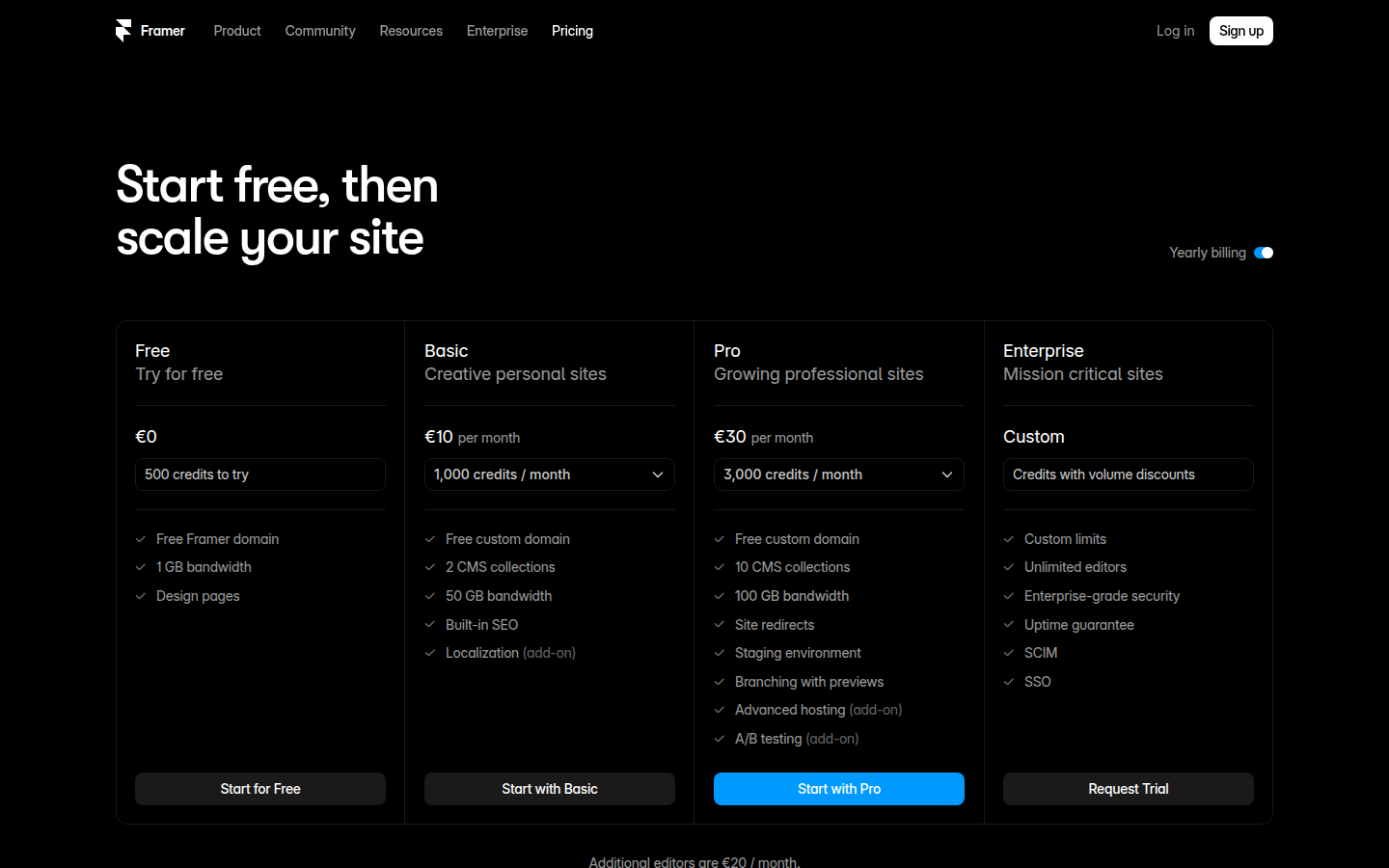
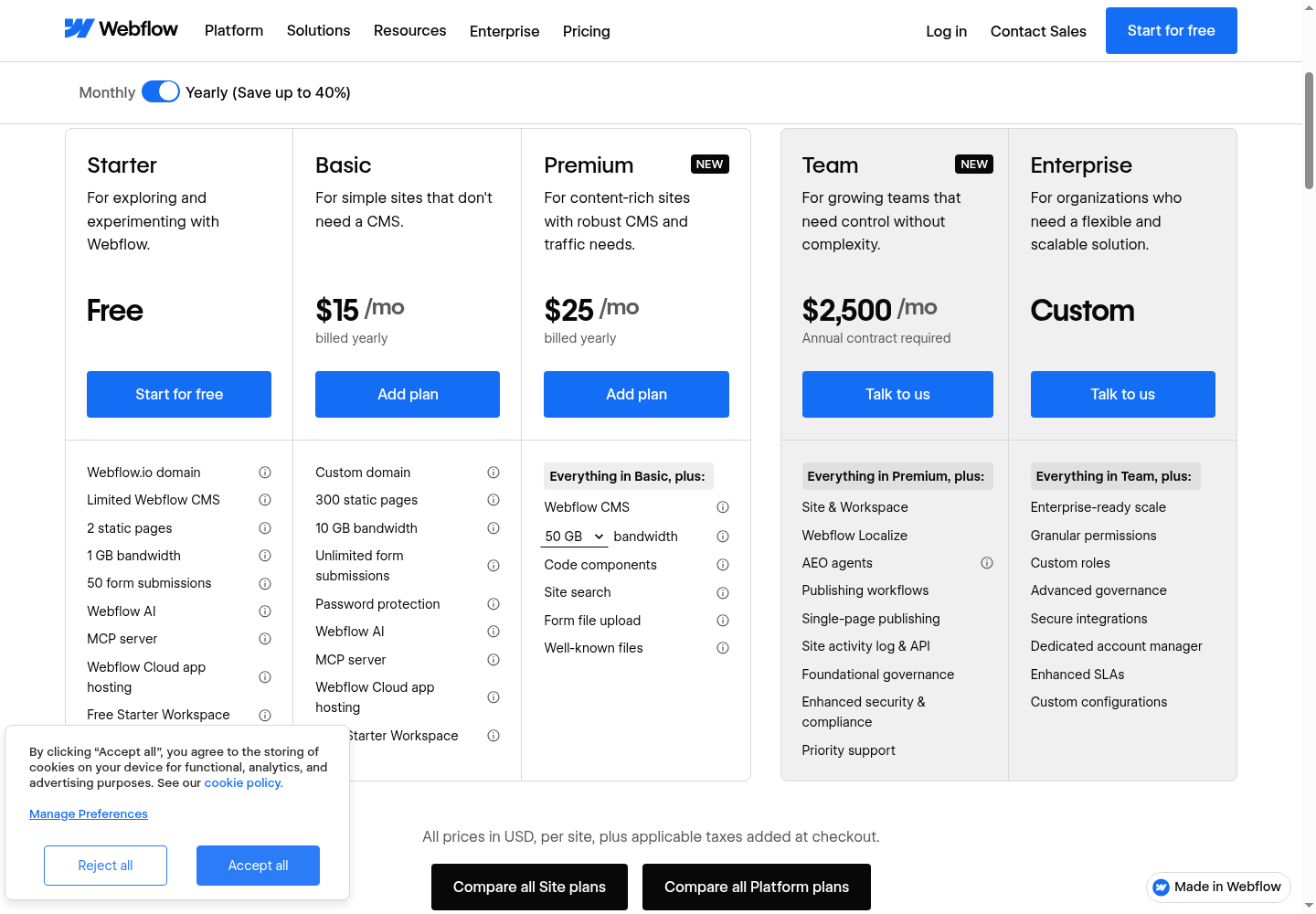
Prices accurate as of July 2026; check the vendor’s site for current rates.
Core Features at a Glance
| Capability | Framer | Webflow |
|---|---|---|
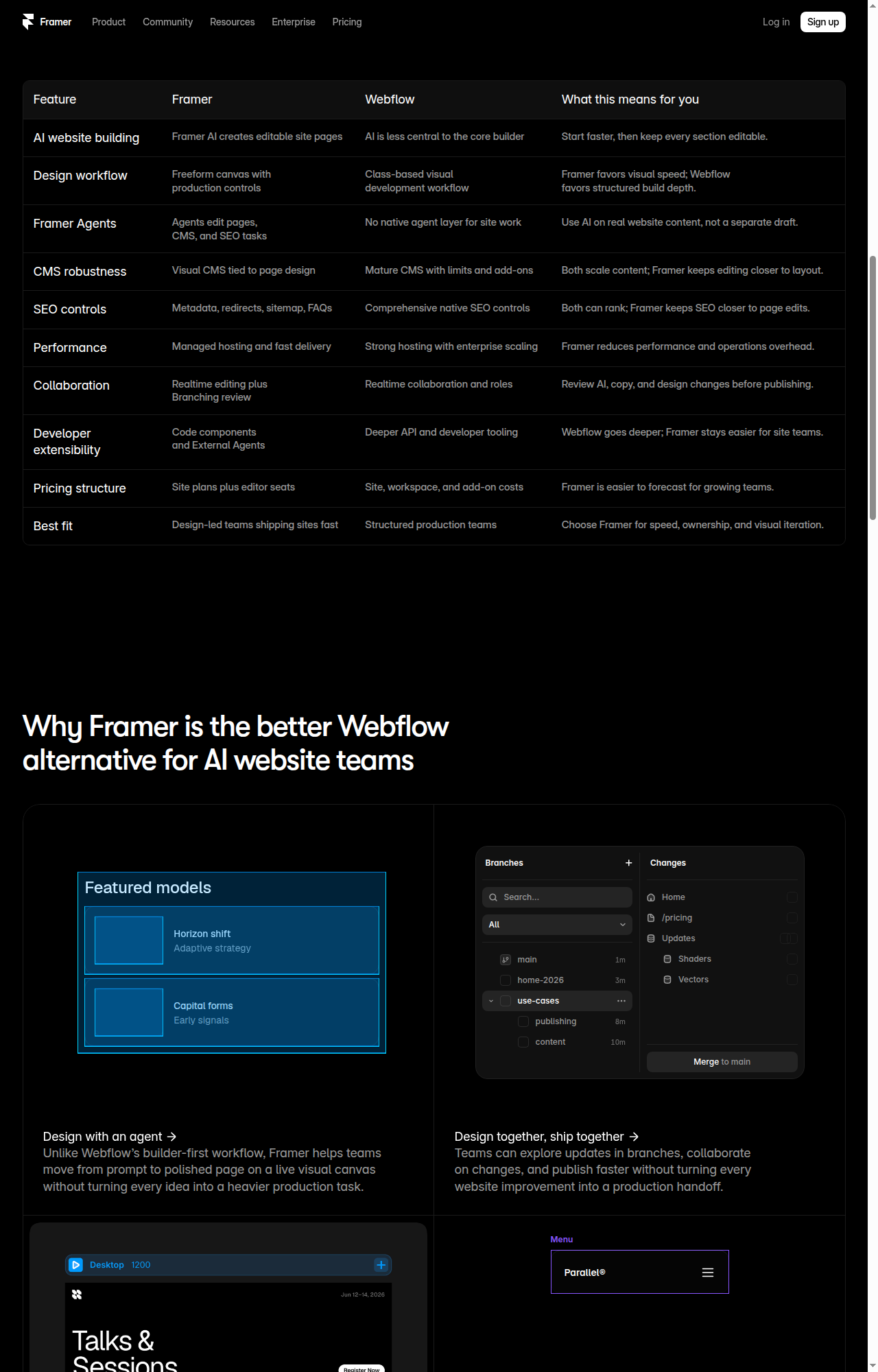
| Builder type | AI-assisted freeform canvas (Figma-like) | Class-based visual development |
| Code export | None (React black box) | Clean HTML, CSS, JS - you own it |
| AI | Native Agents (design, CMS, code on canvas); External Agents (Claude Code, Cursor, Codex) | AI site builder, section generation, copy generation; AEO agents on Team+ |
| CMS | Visual CMS, 2-40 collections, 1K-40K items, CSV/Markdown import | Visual CMS: Starter 20 collections/50 items, Basic none, Premium 40/20K, Team 100. Headless APIs (60-120 RPM), Zapier |
| SEO | Metadata, redirects, sitemap, AEO scanner, AI SEO agents, JSON-LD | SEO metadata, alt text, OG settings, and canonical tags are free on every plan, including Starter. Sitemap controls, crawler access, robots.txt/LLMs.txt, and schema markup need Basic+ (or a paid Workspace on a Starter site). 301 redirects need Basic+. CMS item indexing control is Premium-only. AI “Improve SEO & AEO” audits need Basic+. AEO agents (technical, content, recommendations dashboard) are Team/Enterprise-only |
| E-commerce | None | Full e-commerce capabilities |
| Hosting | Global CDN, 20-300+ locations | Tier 1 CDN (Cloudfront + Fastly), 100+ locations, HTTP/2 & HTTP/3 |
| Performance | LCP 1.1s, INP 95ms, CLS 0.01 (claimed) | Global CDN, surge protection, auto image optimization |
| Collaboration | Real-time editing, branching, staging (Pro) | Realtime collaboration, roles, publishing workflows, design approvals (Team+) |
| Extensibility | Custom code embeds, external agents, code components | MACH-certified headless APIs, Figma plugin, Webflow Cloud (D1/KV/R2), App Marketplace |
Where Each Tool Loses
Where Framer loses:
- No code export. Your site is locked into Framer’s React-based rendering. If you leave, you rebuild from scratch.
- Weak CMS at lower tiers. Basic gives you 2 collections - that’s a blog plus one more content type. Webflow Premium provides 40 CMS collections on its $25/mo plan.
- No e-commerce at all. Framer is purely for marketing sites and landing pages.
- No REST API. No webhooks. The developer surface is minimal.
- Team collaboration is thin. No design approvals, no granular roles beyond owner/editor/content editor/viewer.
Where Webflow loses:
- Steep learning curve. Webflow’s class-based system requires understanding HTML and CSS concepts. Framer’s freeform canvas is more intuitive for designers.
- More expensive at scale. The Team plan is $2,500/mo with an annual contract. Add-ons like Optimize ($299/mo) and Localize ($9-29/mo) pile on.
- Less AI-native. AI in Webflow is an assistant layer. Framer’s agents work directly on the canvas, making them feel like part of the tool rather than a bolt-on.
- Slower visual iteration. Class-based building is structured but slower than Framer’s Figma-like freeform approach for quick design changes.
What Can and Cannot Transfer
This is the section that determines whether migrating is worth it. The short version: your content can move. Your design cannot.
What Transfers (With Manual Work)
CMS content: Framer supports Markdown export (Copy as Markdown) and CSV export per collection. Webflow imports CSV and accepts Markdown in rich text fields. The process is manual but straightforward: export from Framer, clean up if needed, import into Webflow.
Images: Download from Framer’s asset manager and re-upload to Webflow. No automated transfer exists.
Custom code: Copy from Framer’s custom code blocks into Webflow’s custom code fields (site-wide or per-page).
SEO metadata: Both tools support custom titles, descriptions, OG tags, canonical URLs, and schema markup. But you must recreate every meta tag manually in Webflow.
301 redirects: Both tools support redirects. You need to recreate every redirect rule in Webflow. This is the most SEO-critical step - miss one redirect, lose that page’s rankings.
What Cannot Transfer (Must Be Fully Rebuilt)
Design and layout. This is the hard truth: Framer’s React-based freeform canvas produces output that cannot be exported as clean HTML/CSS. Every single page must be redesigned and rebuilt in Webflow from scratch. There is no automated migration tool for this path, and there likely never will be - the rendering engines are fundamentally different.
Interactions and animations. Framer’s interactions are React-based. They must be rebuilt using Webflow’s Interactions (classic or GSAP-powered). GSAP in Webflow is genuinely powerful - more capable than Framer’s built-in interactions for complex animations - but the rebuild is manual.
CMS schema. Framer and Webflow use different field types and data structures. You recreate the schema in Webflow, then import the data.
Forms. Rebuilt using Webflow forms. Different system, different submission handling.
Third-party integrations. Framer uses embed-based integrations (Google Analytics, Tag Manager snippets). Webflow has native integrations plus an App Marketplace. You may gain functionality here, but you must redo every integration.
Migration Strategy and SEO
Migrating platforms without tanking your search rankings requires a disciplined approach. Here is the playbook:
The SEO Preservation Checklist
-
Keep URL slugs identical. If your Framer page is at
/blog/my-post, build the Webflow page at/blog/my-post. Every changed URL needs a 301 redirect. -
Recreate 301 redirects first. Before DNS cutover, set up every redirect rule in Webflow. Both tools support 301 redirects, but Webflow requires a paid plan for redirects (Basic and above).
-
Recreate all meta titles and descriptions. Webflow supports dynamic metadata from CMS fields, similar to Framer’s
{{Title}}variables. Match them exactly, then improve later. -
Submit the new sitemap. Both tools auto-generate XML sitemaps. After cutover, submit the new sitemap in Google Search Console.
-
Use Webflow’s staging. Build and test everything on your
yoursite.webflow.iostaging domain before changing DNS. This is your safety net.
The Domain Cutover Process
- Build all pages on Webflow staging (
yoursite.webflow.io). - Set up all 301 redirects in Webflow.
- Recreate all SEO metadata and schema markup.
- Add your custom domain to Webflow.
- Update DNS records to point to Webflow (A records or CNAME as provided).
- Monitor Google Search Console for 48-72 hours after cutover.
- Only cancel your Framer subscription once everything is confirmed working.
Gradual Migration Alternative
Rather than a hard cutover, you can migrate incrementally. Build Webflow pages one at a time. Use Framer’s page-by-page migration pattern: publish new Webflow pages as they are ready while old Framer pages remain live. Framer has documented this “page by page” approach (originally for migrating TO Framer, but the pattern works in reverse). This reduces the risk of a sudden SEO dip.
How to Migrate: DIY vs Agency
There are three approaches. Which one fits depends on your site size, budget, and Webflow expertise.
Approach 1: DIY Manual Rebuild
Design and build every page from scratch in Webflow. Copy content manually. Recreate SEO metadata. Set up redirects. Switch DNS.
- Time: Expect several weeks to a few months depending on your page count, design complexity, and Webflow experience. A small marketing site may take a few weeks; a larger site with CMS collections can take a couple of months.
- Cost: Your time plus a Webflow plan ($15-25/mo)
- Best for: Simple sites (under 10 pages), teams with existing Webflow skills, tight budgets
- Risks: SEO dip if redirects are missed. Design inconsistency between pages. Longer timeline if you are learning Webflow while building.
Approach 2: Hire a Webflow Certified Partner
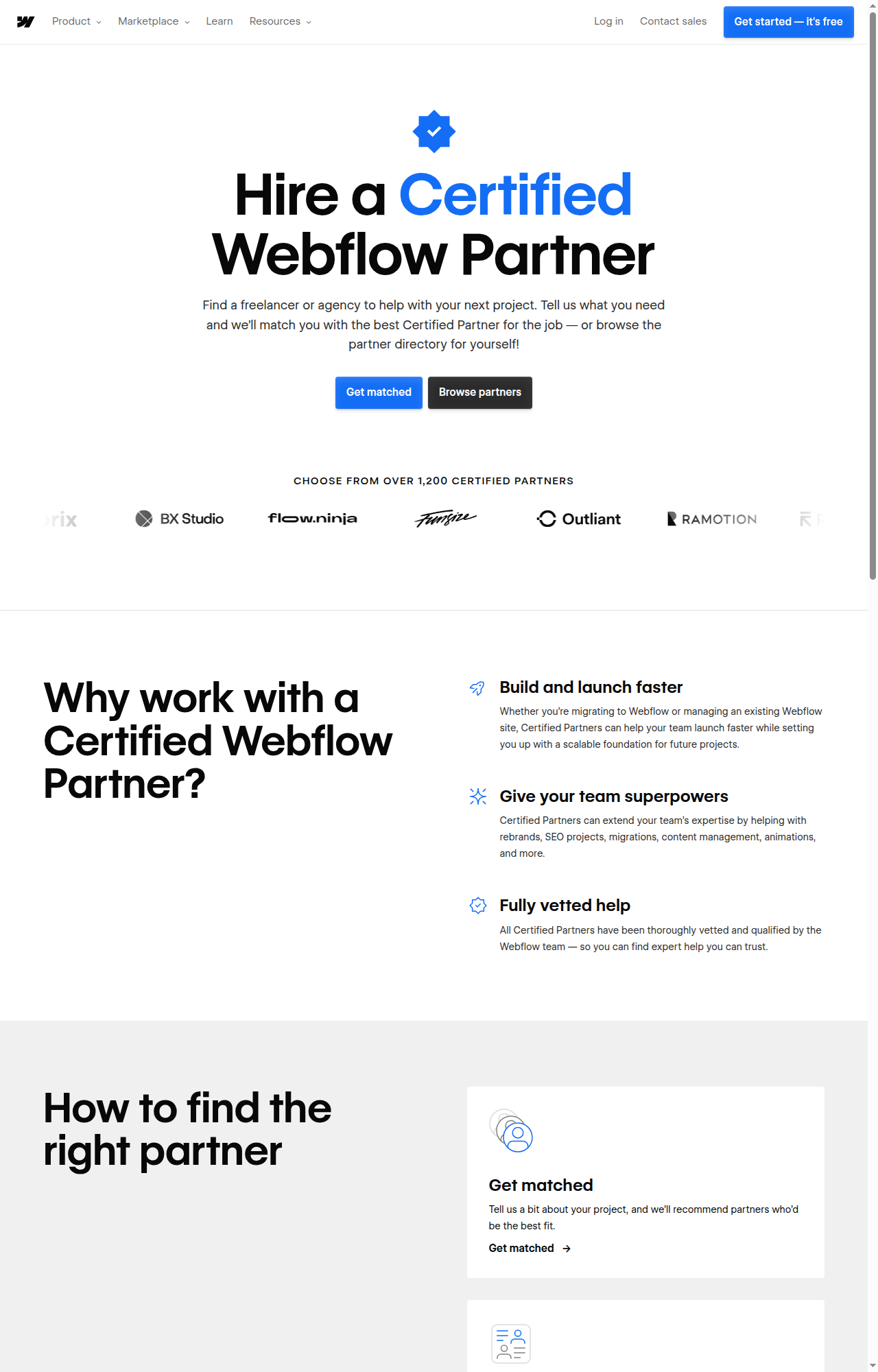
Webflow has over 1,200 Certified Partners - agencies and freelancers vetted by Webflow. Many specialize in migrations and rebrands. Webflow offers a free matching service at webflow.com/certified-partners where you describe your project and get recommended partners.
- Cost: Varies widely depending on site complexity, page count, and the partner you choose. Get quotes from multiple Certified Partners to compare. Most partners scope projects after reviewing your existing site.
- Best for: Larger sites (20+ pages), complex CMS setups, teams without Webflow expertise, sites where SEO cannot risk a dip
- Benefits: Vetted partners, faster launch, SEO expertise, scalable foundation. Many partners offer post-launch support and training for your team.
Approach 3: Hybrid (Agency + DIY)
A partner handles the complex foundation: CMS architecture, design system, key pages, and the SEO migration plan. Your team handles content migration and simpler pages.
- Cost: Less than a full agency rebuild since your team handles part of the work. The agency portion covers the technical foundation and the pages you choose to outsource.
- Best for: Teams that want a solid foundation but can handle ongoing content work themselves. Reduces agency cost while maintaining quality on the critical technical parts.
When Staying on Framer Is the Right Call
Migrating is expensive in both time and money. For many teams, staying on Framer is genuinely the better decision. Here is when:
-
Speed of iteration matters most. Framer’s freeform canvas plus AI agents let you ship and iterate faster than any structured builder. If your team ships marketing pages weekly and experiments constantly, Framer’s workflow is unmatched.
-
You have no developer resources. Framer is more accessible to non-developers. Webflow requires understanding HTML and CSS concepts - the learning curve is real. If your team is purely designers and marketers, Framer is the easier tool.
-
Your site is purely a marketing site. No e-commerce, no user accounts, no complex logic. Framer handles marketing sites, landing pages, and blogs well.
-
Your CMS needs are modest. Under 10 collections and under 2,500 items. Framer’s CMS is perfectly capable at this scale. You only outgrow it at the higher end.
-
You value AI-first workflows. Framer’s AI agents (design, CMS, code) work natively on the canvas, editing real site content rather than generating separate drafts. Webflow’s AI is an assistant layer - useful, but not the core experience.
-
Cost predictability. Framer’s pricing is simpler: €10-30/mo plus editor seats. Webflow’s add-ons (Optimize $299, Localize $9-29, Analyze $9) can add up on top of the Team plan’s $2,500/mo.
-
You use external AI tools. Framer’s external agents feature (Claude Code, Cursor, Codex) is unique. You can drive site edits from your terminal or AI coding tool. If your workflow already involves these tools, Framer extends that workflow to your website.
Bottom Line
If you are reading this because you have outgrown Framer’s limits - you need more than 40 CMS collections, you need e-commerce, you need headless APIs, or you need proper code ownership - migrating to Webflow is the right move. The rebuild is costly, but it is a one-time cost that gets you onto a more extensible platform.
If you are reading this because you think Webflow is “better” - pause. Both tools are excellent. Framer wins on design speed and AI integration. Webflow wins on structured depth and developer surface. The right call depends on what you actually need, not on which tool has more features on a marketing page.
Not sure? Start with the DIY approach on one or two pages. Build them in Webflow’s free Starter plan. If the process feels right and the result justifies the effort, expand from there. If it feels like you are fighting Webflow’s class-based system to replicate what took 10 minutes in Framer, you have your answer.
For the head-to-head feature comparison between Framer and Webflow, see our Framer vs Webflow comparison. If the platform you are actually weighing Framer against is WordPress rather than Webflow, see our Framer vs WordPress comparison instead.