30 May 2026 · Tutorial
How to Set Up an Affiliate Program on Systeme.io (Free Plan)
The short answer
Step-by-step walkthrough: create a product, configure commissions, and launch your own affiliate program on Systeme.io without paying a cent.
This tutorial is for course creators, coaches, and digital-product sellers who have a Systeme.io account (or are about to sign up) and want to build an affiliate program on the free plan. Systeme.io is the only all-in-one marketing platform that includes affiliate management starting at $0 - no other competitor lets you create a commission program without a paid subscription. By the end of this walkthrough, you’ll have a product linked to affiliate commissions, a way to onboard affiliates, and a working understanding of how payouts work. Every screenshot in this post comes from a real account we tested ourselves - no vendor stock images, no guesswork. (How we research)
Affiliate disclosure: Some links in this post are affiliate links. If you sign up for Systeme.io through them, we may earn a commission at no extra cost to you. This does not influence the steps shown - every screenshot is captured from a real account, and the tutorial works identically whether you use our link or not.
If you don’t have a Systeme.io account yet, grab a free account here before starting - the entire tutorial works on the free plan (no credit card needed).
Estimated time: 25–35 minutes from signup to a working affiliate program.
Step 1: Create a product
Before you can run affiliates, you need something for them to promote. In Systeme.io, a “product” can be a physical item, a course, or a step inside a sales funnel. The free plan supports all product types - you get unlimited physical products, 1 course, 1 community, and 3 sales funnels.
From the sidebar, hover over Assets, then click Physical products. You’ll land on a page with a Create button.
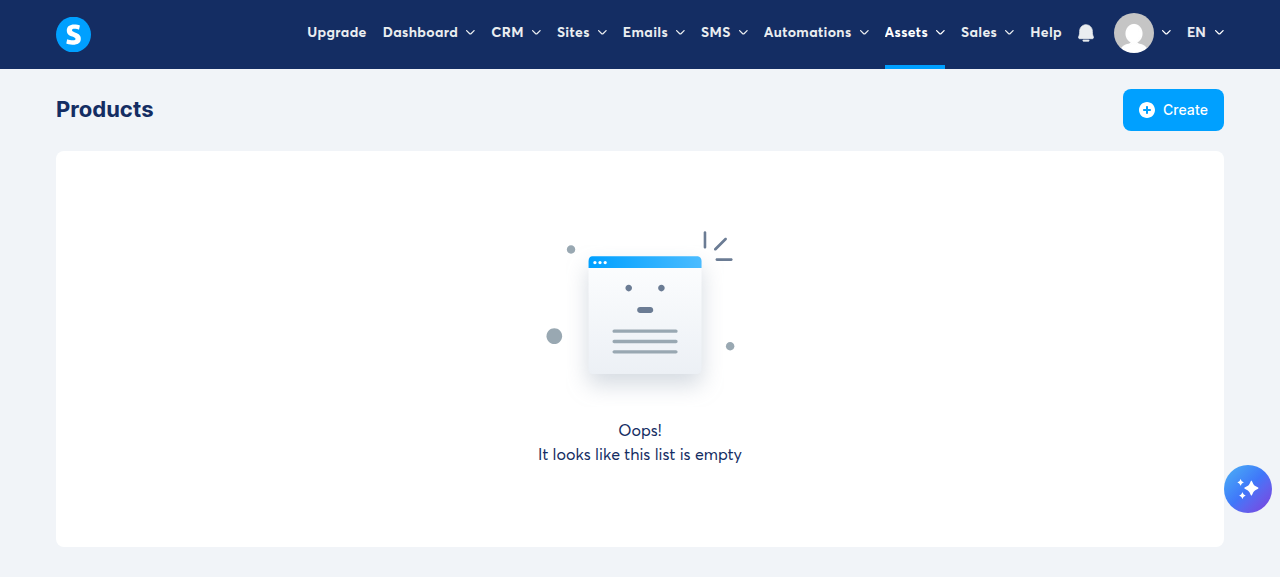
Click Create. A form opens with fields for Name, Price, Currency, Description, SKU, Tax behavior, Weight, Inventory, and Shipping options.
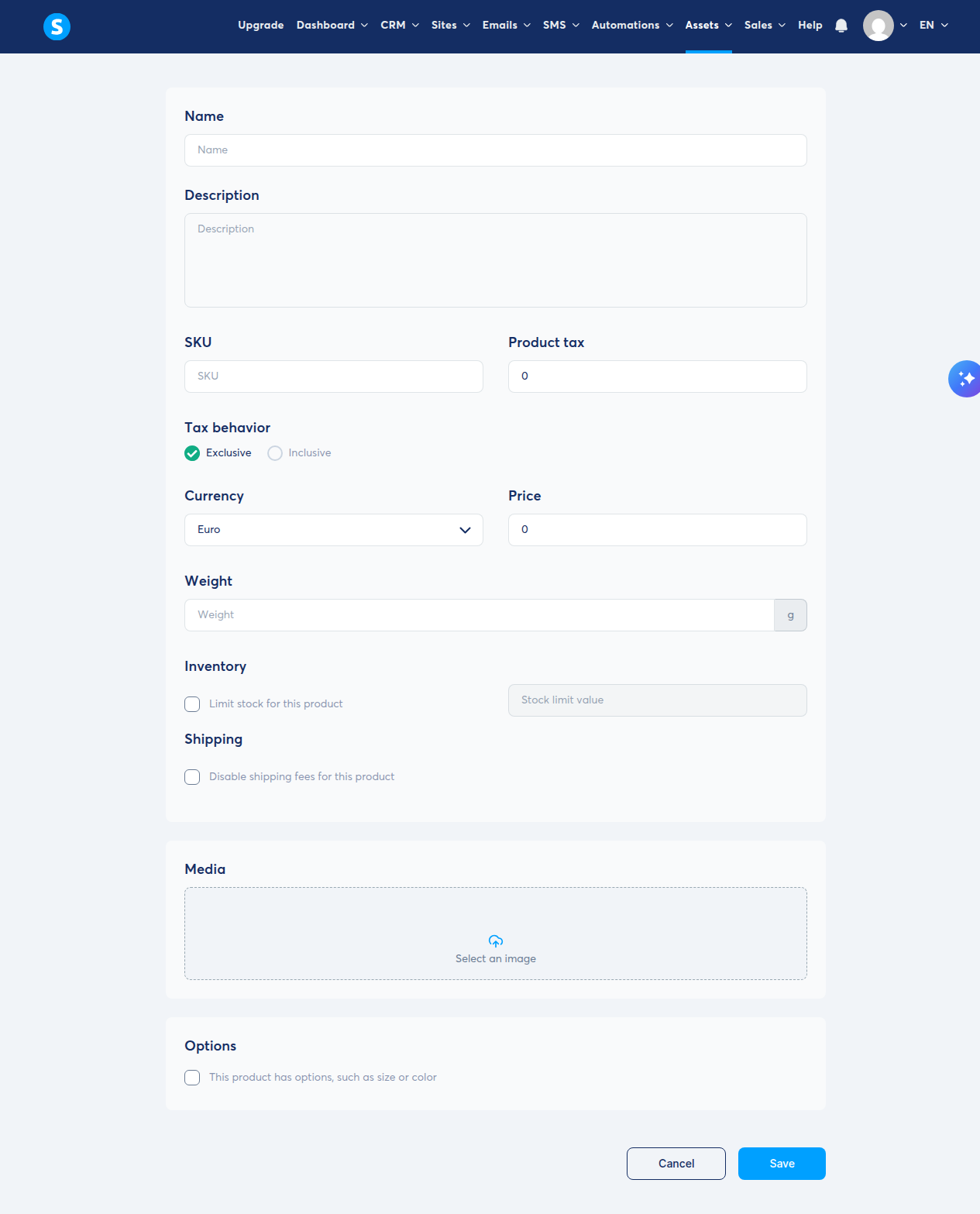
Fill in the name and set a price (even $0 works for testing). For a digital product, toggle on Disable shipping fees for this product - otherwise Systeme.io expects shipping details. Click Save.
Tip for course creators: If you’re selling a course instead of a standalone product, go to Assets → Courses and click Add a new course. Courses work identically for affiliate purposes - both physical products and courses can be linked to affiliate commissions.
What goes wrong here: If you skip this step and try to set up affiliate commissions first, Systeme.io will still let you configure everything - but without a product to sell, there’s nothing for an affiliate link to point to, and no commissions will generate.
Step 2: Find the Affiliate Program section
Systeme.io doesn’t put “Affiliate Program” directly in the top-level sidebar. You’ll find it under the Sales dropdown. Click Sales in the top navigation bar, then select My affiliate program.
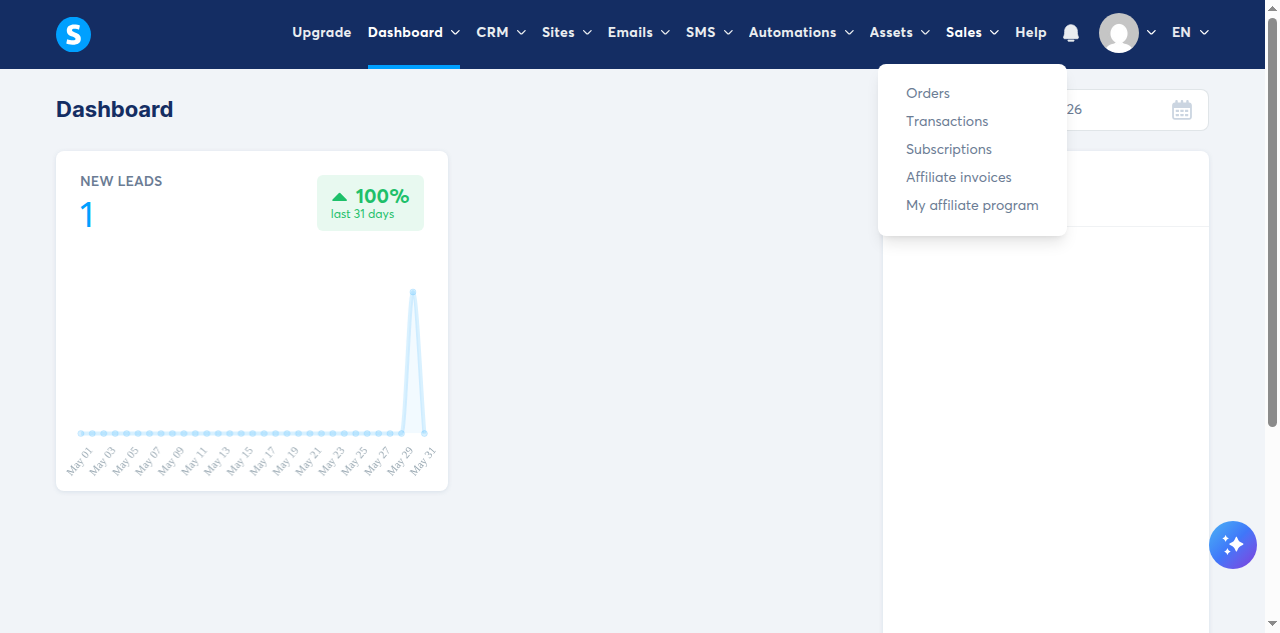
This opens the Affiliate program dashboard - even on a brand-new free account, the affiliate management section is already live. There’s no “enable” toggle to flip; the program exists from the moment you create your account.
What goes wrong here: Users sometimes look for “Affiliate Program” directly in the sidebar and miss it because it’s nested under Sales. If you don’t see the Sales dropdown, click the Sales button in the top nav bar - the dropdown appears on click, not on hover.
Step 3: Configure commission settings
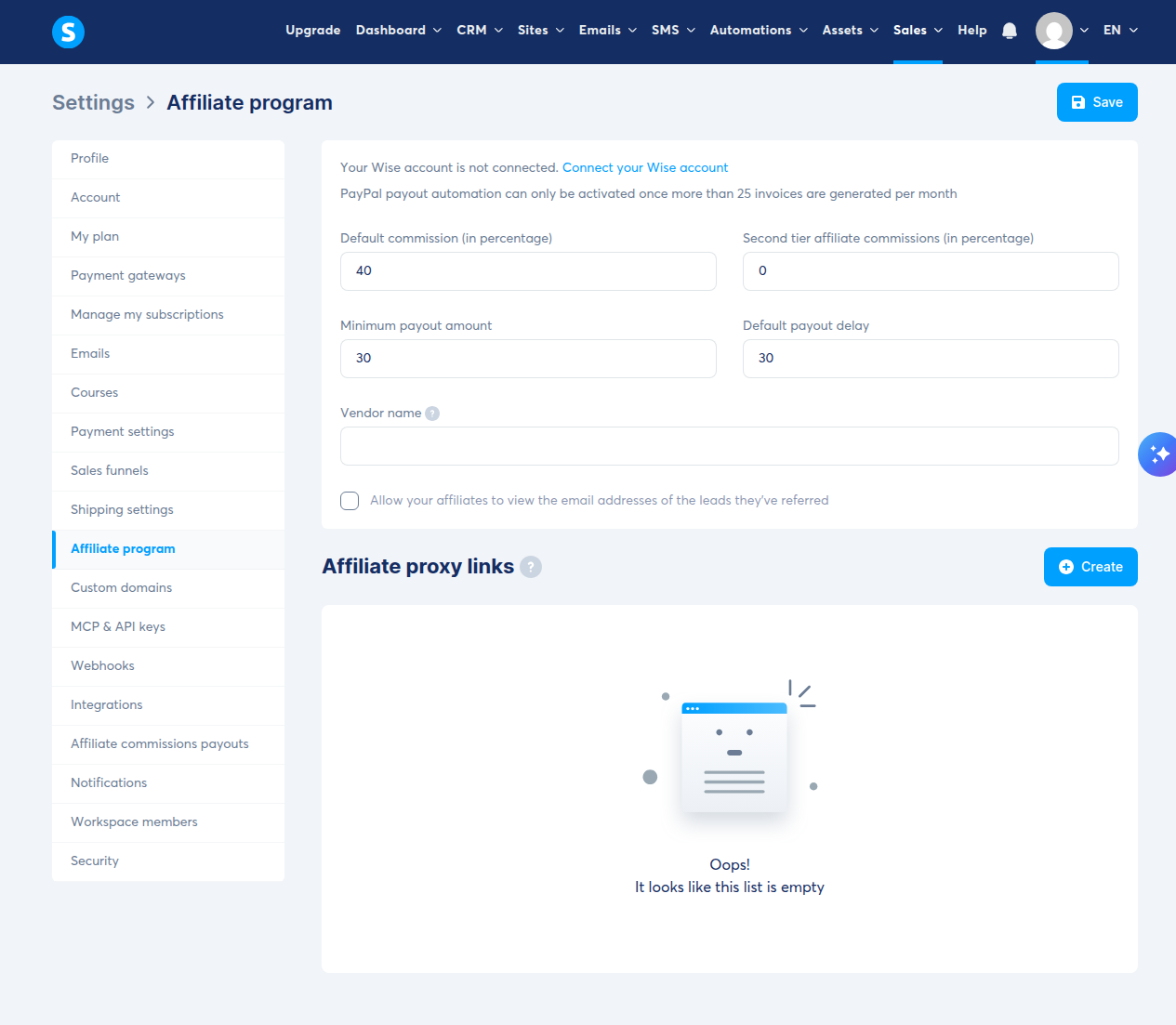
From the Affiliate program dashboard, click Affiliate program settings (the button at the top right). This takes you to Settings → Affiliate program, where you configure how affiliates get paid.
The four critical fields and their defaults:
- Default commission (in percentage): Starts at 40%. This is the percentage of each sale your affiliate earns. The spinbutton accepts any value - but the industry norm for digital products is 20–40%. Below 10% won’t attract active promoters; above 50% eats into your margin unless the product is a tripwire.
- Second tier affiliate commissions: Starts at 0%. If you enable this (e.g., 5%), affiliates also earn a cut when their own referred affiliates make sales.
- Minimum payout amount: Defaults to 30. This is the threshold an affiliate must reach before an invoice is generated. Set too low ($5) and you’ll drown in admin; too high ($100+) and new affiliates will lose motivation. $25–$50 is practical.
- Default payout delay: Defaults to 30 days. Commissions from a sale are held for this many days before becoming payable. Useful if you offer a money-back guarantee - you don’t pay commission on refunded orders.
There’s also a checkbox: “Allow your affiliates to view the email addresses of the leads they’ve referred.” Check this if you want affiliates to see who clicked their links - useful for transparency, but some creators prefer to keep lead data private.
What goes wrong here: Do not set the commission to 100% on a paid product. Systeme.io charges 0% transaction fees on all plans, so your only cost is the payment processor fee (typically 2.9% + $0.30 through Stripe or PayPal). A 40% commission on a $50 product leaves you ~$29.20 after processor fees - still a healthy margin. But at 100%, you lose money on every sale.
Practical tip you won’t find on Systeme.io’s own site: When crafting your affiliate communications, lead with the dollar amount they’ll earn per sale, not just the percentage. “Earn $20 per sale” converts better than “40% commission.” Also mention that Systeme.io charges 0% transaction fees - most other affiliate platforms shave 5–15% off commissions; your affiliates keep every cent here.
Step 4: Link your product to commissions via a sales funnel
Systeme.io’s affiliate commissions are tied to order form pages inside sales funnels. This is where the product-to-commission link actually happens - not in a separate “Link product” screen.
Here’s the flow:
- Go to Sites → Sales funnels and click Create. Choose a funnel goal (“Sell” is the most common for affiliate-driven products) and give it a name.
- Inside your funnel, add an Order form step. The order form is where you set the price and select which product or course the customer is buying.
- In the Order form settings, you’ll find a field for Affiliate commission percentage. By default this is 0% - set it to match your global default (40%) or a custom rate for this specific product.
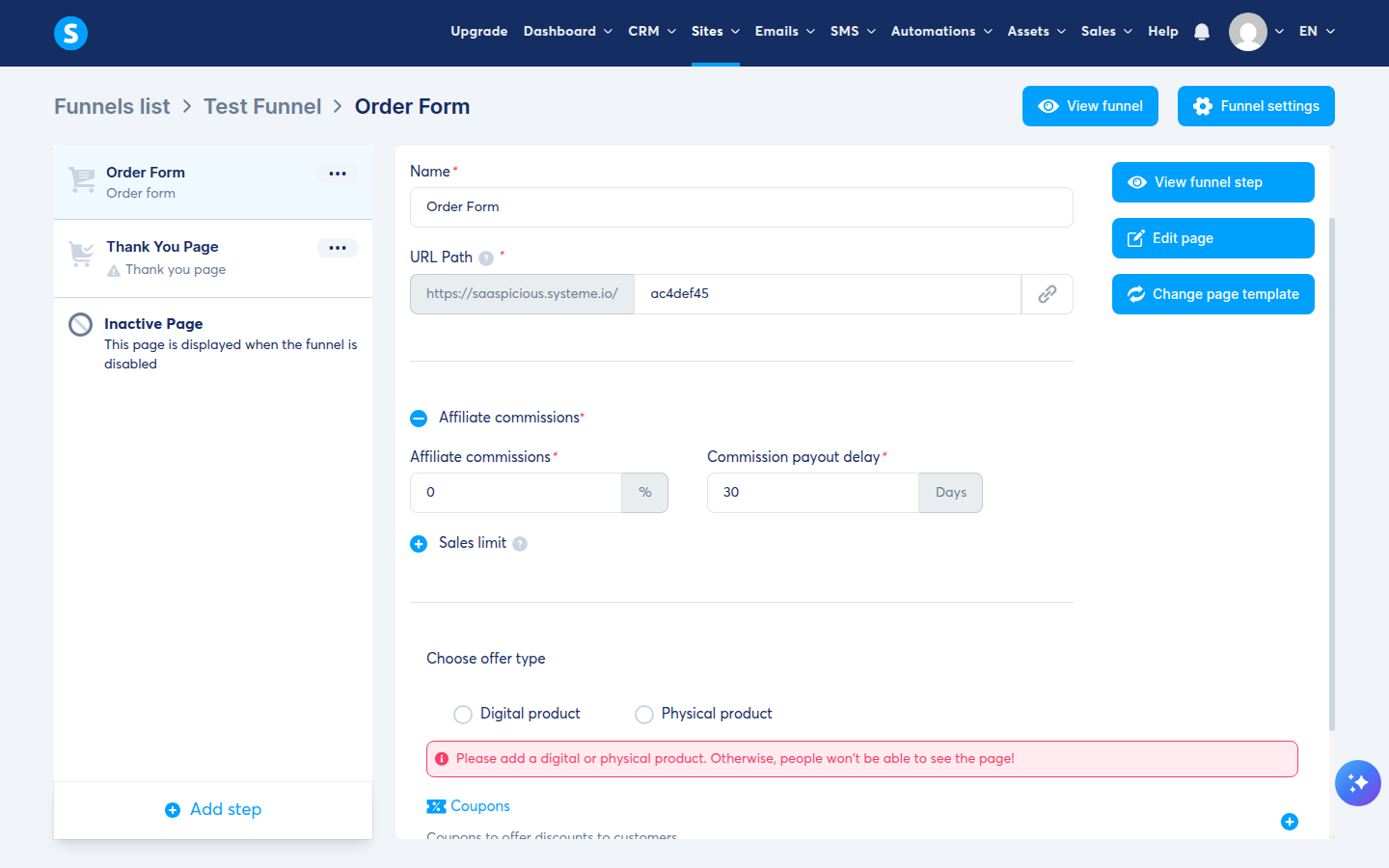
The affiliate dashboard also has a Commission structures section where you can create product-specific commission overrides. But for your first program, setting the commission rate on the order form is the most direct path. Note: the order form’s affiliate commission defaults to 0% - it does not inherit the 40% global default you set in Step 3. You must change this manually.
What goes wrong here: If you leave the order form’s affiliate commission at 0%, your affiliates will drive sales but earn nothing. Systeme.io’s global 40% default in Settings does not automatically apply to new order forms - each form starts at 0% and you must set it manually. Double-check this before sharing any affiliate links.
Step 5: Give affiliates a way to sign up
Systeme.io doesn’t generate a single “affiliate signup URL” that you copy and paste. Instead, it uses a contact-based model: every contact in your account automatically receives an affiliate ID. Your job is to build a path for people to become contacts.
You have two approaches:
Option A - Dedicated opt-in page (recommended for most creators):
- Create an opt-in page in your funnel builder (Sites → Sales funnels → Create → “Build an audience”).
- Add a form that captures name and email.
- Tag everyone who opts in with an “Affiliate” tag.
- Set up an automation (Automations → Create) that triggers when someone receives the Affiliate tag and sends them a welcome email containing their unique affiliate link. Use the
{affiliate_id}variable in your email, like this:https://your-funnel-url?sa={affiliate_id}.
Option B - Affiliate proxy links (for sharing a short, branded URL):
In Settings → Affiliate program, scroll to the Affiliate proxy links section and click Create. You can generate a custom URL on your subdomain (e.g., saaspicious.systeme.io/join) that redirects to any page. This is useful if you want a clean, memorable link to give to potential affiliates.
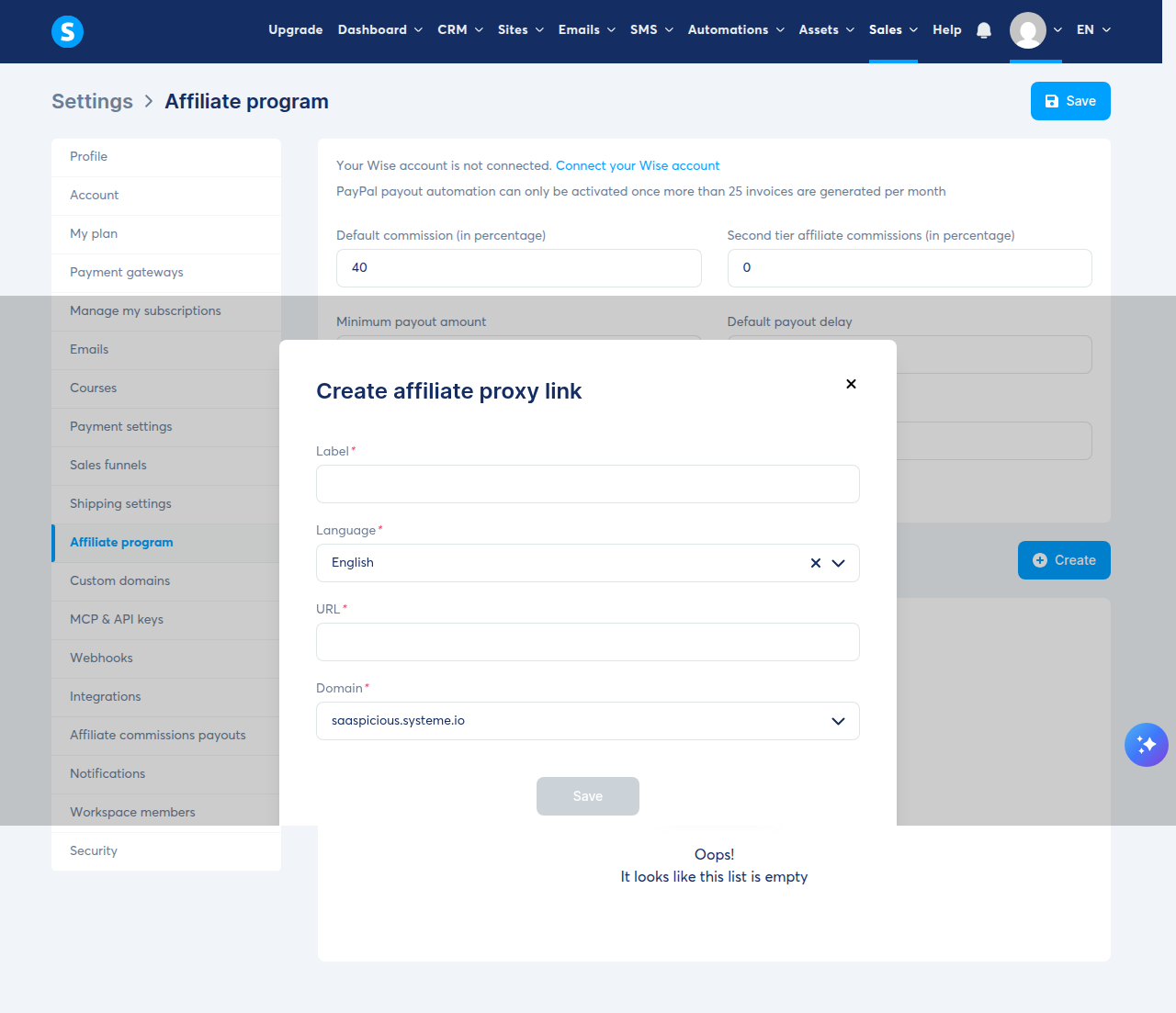
Once someone signs up (via either method), you send them their link through the email automation, and they can access their affiliate dashboard through the {affiliate_dashboard} variable.
What goes wrong here: Don’t share a direct link to your Systeme.io admin dashboard. New affiliates can’t log in there. Always test any link you plan to share in an incognito/private browser window - if it shows a login page instead of a signup form, you’ve got the wrong URL.
Step 6: Monitor your affiliate dashboard
The affiliate dashboard (Sales → My affiliate program) is your command center for managing the program. It shows:
- Sales / Leads / Commissions - a top-line stats bar with totals for your selected date range
- Affiliates list - everyone who has signed up, with search by email address or affiliate ID, and a filter button
- Commission structures - product-specific commission overrides (visible once created)
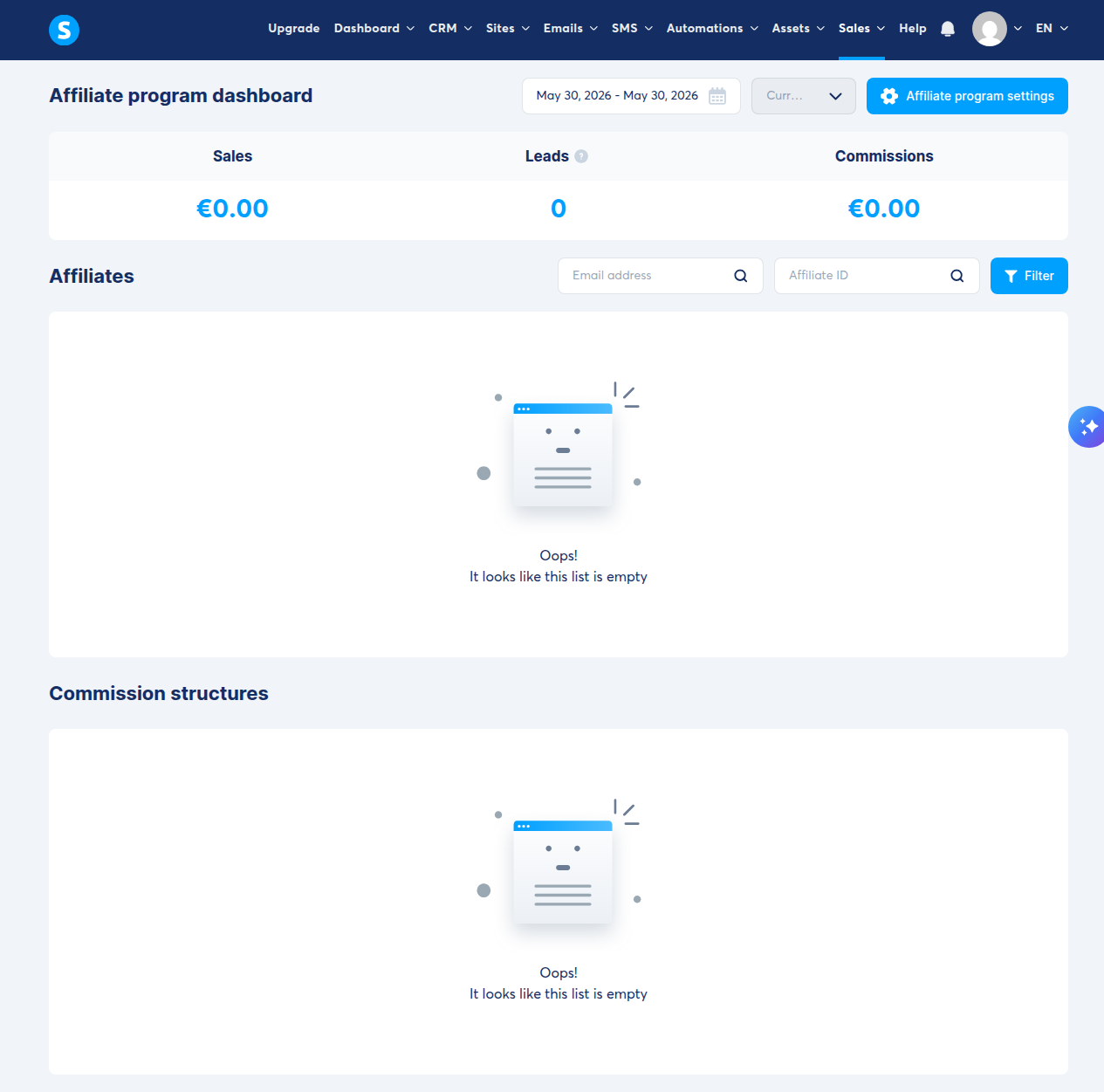
From here you can track who is promoting, how many leads they’re sending, and how much commission they’ve earned. The dashboard updates in real time as sales come in.
What goes wrong here: A freshly launched program will show zeros across the board - that’s normal. What’s not normal is seeing clicks but zero sales for weeks. That usually means either the order form’s affiliate commission is still at 0% (Step 4 issue), or the affiliate link structure is broken. Re-test your funnel link with a test affiliate ID appended.
Step 7: Understand the payout flow
When an affiliate has earned enough to reach the minimum payout threshold (default: 30 in your account’s currency), the system auto-generates an invoice on the 10th of each month. You then process the actual payment.
Go to Settings → Affiliate commissions payouts to configure how you’ll pay:
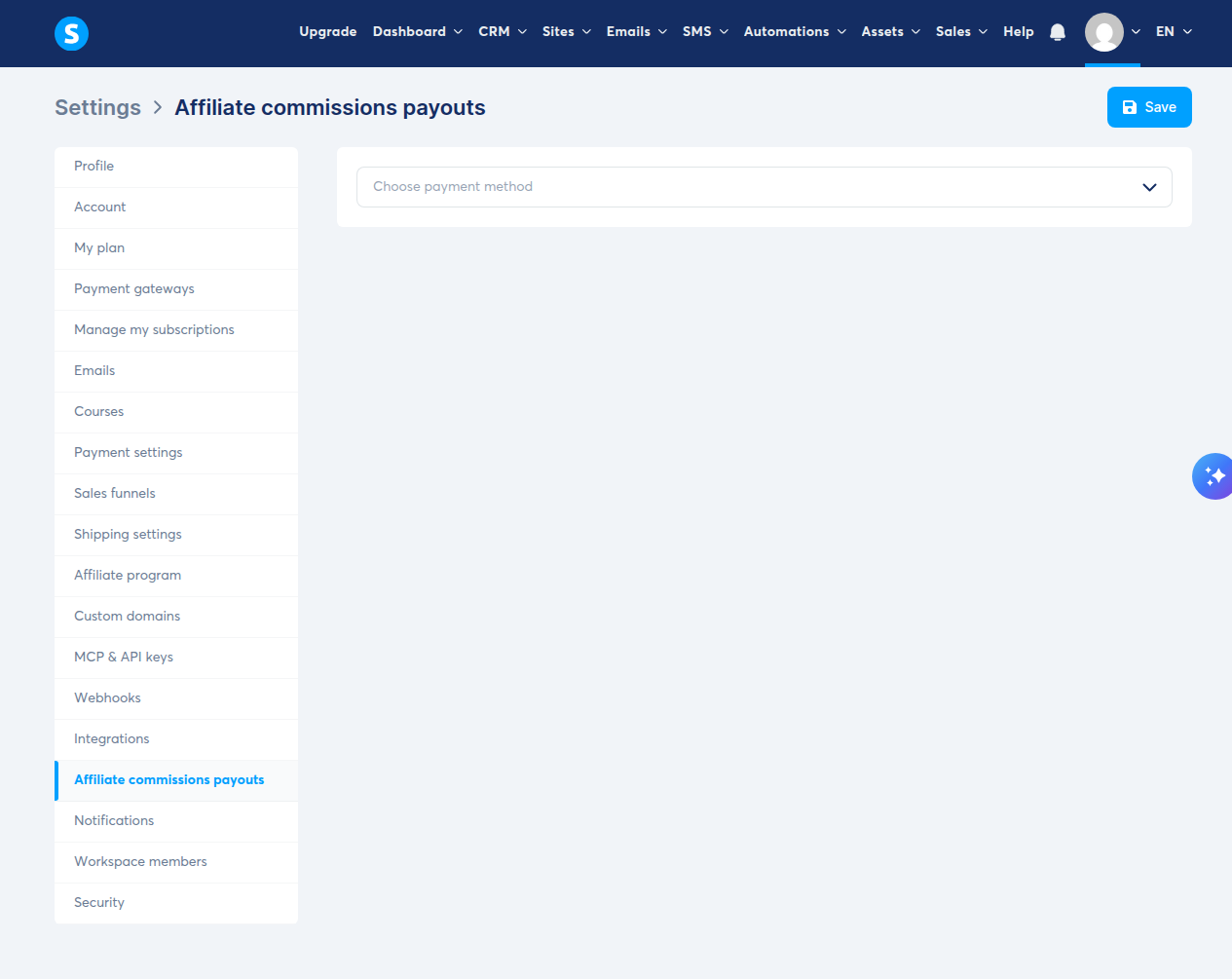
Systeme.io supports two payout methods:
- Wise (bank transfer): Connect your Wise account for batch payouts. This is the most efficient option when you have multiple affiliates to pay.
- PayPal: Manual payouts by default. PayPal automation unlocks after you generate more than 25 invoices per month - until then, you transfer each payment manually.
The payout flow works like this:
- Affiliates earn commissions tracked in real time
- On the 10th of the month, invoices are auto-generated for affiliates who’ve hit the minimum payout threshold
- You review invoices (check for refunds, chargebacks, or self-referrals before paying)
- You approve and send payment via Wise or PayPal
- The Default payout delay setting (30 days) means commissions from sales in January become payable in March (held through February, invoiced March 10th)
What goes wrong here: Affiliates often assume payouts are automatic - they aren’t. You must manually approve and send each payout (unless you’ve unlocked PayPal automation). Set clear expectations on your signup page: state your payout method (e.g., “Paid via PayPal within 7 days of invoice”), minimum threshold ($30), and schedule (invoices on the 10th). This prevents confused emails from affiliates who expected instant deposits.
Also: the 30-day payout delay is a double-edged sword. It protects you from paying commission on refunded sales, but affiliates who are new to the program may interpret the delay as “I’m not getting paid.” Explain the delay upfront.
(Optional) Automated affiliate welcome emails
Systeme.io’s automation engine can handle the entire affiliate onboarding flow automatically. Go to Automations in the top nav, click Create, and build a rule that triggers when a contact gets tagged as “Affiliate.” The action: send an email containing:
- A welcome message
- Their unique affiliate link:
https://yourdomain?sa={affiliate_id} - A link to their affiliate dashboard:
{affiliate_dashboard} - A brief guide on how to promote (share the link, track clicks, request payout)
The free plan includes 1 automation rule and 1 workflow - enough to run one welcome sequence. If you outgrow this, the Startup plan ($17/mo) bumps you to 10 automation rules. And if you’d rather run affiliate comms from a dedicated email tool, our Kit vs Mailchimp comparison covers the two most common picks.
What goes wrong here: The free plan’s 1-automation limit means you can’t run both an affiliate welcome sequence and a separate customer onboarding sequence simultaneously. The workaround: use a single automation with conditional branches (tag-based filtering) to handle both paths. Or send a manual broadcast email to your affiliate-tagged contacts - broadcast emails are unlimited on all plans.
Where this setup hits its limits (honest weaknesses)
2,000-contact ceiling on the free plan. The free plan includes 2,000 contacts. This matters because your affiliates count as contacts (they need to be in your list to receive emails and get their affiliate IDs). If your affiliate program takes off alongside your regular leads and customers, you’ll approach the ceiling faster than you’d think. Upgrading to the Startup plan ($17/mo, confirmed from the live pricing page as of May 2026) bumps you to 5,000 contacts - enough for most solo creators until they’re doing serious volume.
No built-in video hosting. If your product is a video course, you’ll need to host videos on YouTube or Vimeo and embed them. This isn’t a dealbreaker - most course creators do this anyway - but your course content lives outside the platform and requires managing a separate host.
Manual payouts are a chore at scale. Everyone who has run a successful affiliate program will tell you: manual payouts become tedious once you pass 20–30 active affiliates. Batch-pay monthly, keep good records, and aim to unlock PayPal automation (25+ invoices/month) as soon as you can.
Order form commission must be set per funnel. Systeme.io’s global 40% commission setting in the Affiliate Program settings is a default template - it doesn’t automatically apply to new order forms. You must manually set the commission on each order form. Miss this, and your affiliates earn 0% on that specific product.
The signup flow requires build work. Unlike dedicated affiliate platforms (Tapfiliate, PartnerStack) that give you a ready-made signup page, Systeme.io requires you to build your affiliate signup flow yourself using opt-in pages and automation. It’s more flexible, but it’s not the “one-click” experience some competitors offer.
Bottom line: who should follow this tutorial
This setup is right for you if:
- You have (or will build) a digital product - a course, ebook, template, or coaching package
- You want to launch an affiliate program without paying a monthly platform fee
- You’re okay setting up the signup flow yourself (opt-in page + automation)
- You don’t mind managing payouts manually while starting out
- The 2,000-contact limit on the free plan covers your current list size
It’s wrong for you if:
- You need a turnkey affiliate signup page with zero build work
- You expect fully automated payouts from day one
- Your contact list is already over 2,000 and you can’t upgrade to $17/mo yet
- You want a white-labeled affiliate portal branded to your domain (Systeme.io’s affiliate dashboard lives on their domain)
Ready to start? Create your free Systeme.io account and follow the steps above. No credit card needed - and the affiliate program feature is included at $0.
Looking for more hands-on walkthroughs? Browse all our tutorials.